User Guide
Learn how to explore the roads not taken with Parallax, the multiverse observatory for your life.
Contents
1.Getting Started
Parallax works by visualizing your career and life timeline, then letting you explore alternate paths you could have taken. There are several ways to get started:
Upload your LinkedIn PDF: Export your profile from LinkedIn as a PDF, then upload it to Parallax. We'll parse your career history automatically.
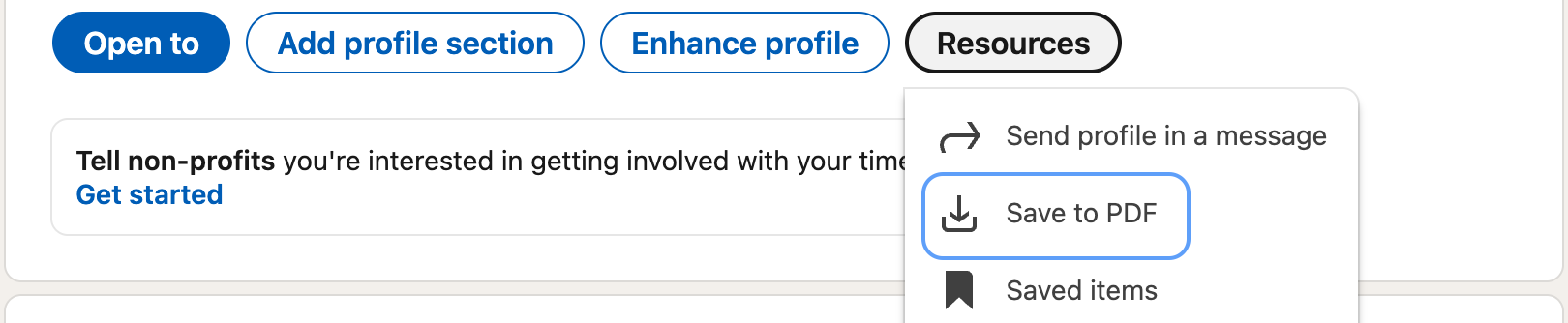
How to export your LinkedIn profile as PDF:
- 1. Go to your LinkedIn profile page
- 2. Click the Resources button
- 3. Select Save to PDF
- 4. The PDF will download automatically
Try a sample persona: Don't want to upload your own data? Choose from our collection of fictional personas organized by life stage:
- Student: Just starting out, exploring possibilities
- Early Career: Jordan Taylor (skilled trades), Aisha Johnson (nonprofit sector)
- Mid Career: Alex Chen (fintech executive), Maya Rodriguez (healthcare)
- Late Career: Established professionals nearing retirement
Create Your Own Timeline (Students): If you're a student without much work history, select the "Create Your Own" option. You'll answer a brief questionnaire about your interests, education stage, and aspirations to generate a personalized starting timeline.
2.AI Resilience Mode
AI Resilience Mode helps you understand your career vulnerability to AI disruption and explore realistic recovery paths. It simulates what would happen if you were laid off at three different time horizons, generating personalized career pivots for each scenario.
How to enter Resilience Mode: On the landing page, upload your LinkedIn PDF or resume. The app will calculate your AI exposure and proficiency scores, then guide you through a brief interview.
The Resilience Interview (6 questions):
- 1. Daily tasks — AI-inferred tasks from your resume. Confirm, remove, or add.
- 2. AI tools — Which AI tools you currently use (ChatGPT, Copilot, etc.)
- 3. Financial runway — How many months you could cover without income
- 4. Dependents — How many people depend on your income
- 5. Appetite for change — Your willingness to pivot careers
- 6. Career interests — Fields you'd consider exploring (if open to change)
After the interview, the app runs 9 parallel simulations (3 time horizons × 3 tones) to generate disruption scenarios.
The Briefing Dashboard shows your assessment results:
- AI Exposure (0-100) — How vulnerable your current role is to automation. Low (<25) means hard to automate, Critical (75+) means actively being replaced.
- AI Proficiency (0-100) — Your skill with AI tools. If low, every generated path includes AI upskilling events.
- Simulation Tone — Switch between Realistic, Optimistic, and Pessimistic scenarios instantly.
Scenarios are organized into three time horizons:
- Immediate (T0) — Laid off tomorrow. Urgent, high-stress recovery paths.
- 6 Months (T6) — Laid off in 6 months. Time to prepare and upskill.
- 12 Months (T12) — Laid off in a year. Maximum preparation time.
Each scenario is tagged with an archetype describing the strategy:
Select one or more paths that interest you, then click Compare Paths to see them as full year-by-year timelines in the Compare view.
3.The Compare View
The Compare view is the default landing view after generating variants. It shows all your explored paths side-by-side in a data table, making it easy to compare outcomes at a glance.
Each row displays:
- Variant name — With archetype badge and time horizon label
- Path Divergence — Career path similarity, timing of the split, and life focus shift
- Outcomes — Net Worth, Stress, Fulfillment, and Drift score with percentage deltas from baseline
Click any row to expand its events inline. You'll see the full event timeline with a divergence divider marking where the variant branches off. Click Open in Tree View at the bottom to switch to the full 3-panel layout for that variant.
Use the Compare / Tree View toggle in the header to switch between views. Your default preference is saved automatically, and you can also set it via the kebab menu (Compare Default toggle).
4.The Timeline Scanner
The center panel shows your Timeline Scanner — a chronological view of all events in your current timeline path. Your original life events appear in white, while alternate paths show in blue.
Each event card shows:
- The event title and date range
- Event type (career, education, relationship, etc.)
- A brief description of what happened
- Impact on your metrics (wealth, stress, fulfillment)
- Divergence indicators showing "X alternate worlds explored" when you've created variants from that event
Events with amber borders indicate Divergence Points — moments where you can explore alternate decisions.
At the bottom of the timeline, you'll find quick-add buttons for common life events. These let you rapidly add personal milestones to your timeline.
5.Exploring What-If Scenarios
This is the heart of Parallax. At any divergence point, click "Explore What-If" to see what might have happened if you'd made a different choice.
When you select an event to explore, the Divergence Inspector panel on the right shows two types of alternatives:
- Pre-canned quick options: Context-aware suggestions based on the event type and your life stage (e.g., "What if I had stayed?" for job transitions, "What if I had pursued a different major?" for education events)
- AI-generated alternatives: These appear automatically after selecting an event, providing deeper personalized scenarios
- Custom scenarios: Enter your own "what if" question to explore any possibility you can imagine
Click any alternative to create and explore that timeline variant.
Explore Future: At the end of any timeline, use the "Explore Future" button to see what might happen next. This extends your timeline with projected future events based on your current path.
6.The World Navigator
The left panel shows your World Navigator — a tree view of all the timelines you've explored. Think of it as a map of your personal multiverse.
Key concepts:
- Prime World — Your original timeline (shown in white)
- Variants — Alternate timelines you've explored (shown in blue)
- Divergence — The point where a variant branched off
Click any world in the navigator to switch to that timeline. Newly created variants will have a subtle glow animation to help you spot them.
Use "Return to Prime World" to get back to your original path. You can also delete branches by hovering over them and clicking the delete icon — this removes that variant and all its child timelines.
7.Adding Life Events
Your LinkedIn profile only captures career events. To get a fuller picture of your life, use the quick-add buttons at the bottom of the timeline:
- Marriage — Add wedding and partnership milestones
- Child — Record births and growing family
- Relocation — Track moves to new cities or countries
- Health — Document significant health events
- Home Purchase — Add property acquisitions
These quick-add buttons are the primary way to enrich your timeline with personal events. The more complete your timeline, the more meaningful your alternate paths can be.
8.Understanding Metrics
Each timeline tracks three key metrics displayed in the header:
- Wealth — Estimated net worth (shown as $1.2M, $500K, etc.)
- Stress — Overall life stress level (0-100)
- Fulfillment — Life satisfaction and purpose (0-100)
When viewing an alternate timeline, you'll see metric deltas showing the percentage change from your Prime World baseline (e.g., "+25%" or "-10%"). This helps you quickly understand how different choices might have impacted your life.
The Parallax Meter visualizes your "identity distance" from Prime World using a rubber band metaphor. The meter shows how far you've stretched from your original reality — higher tension means a more dramatically different life outcome, with increased vibration and glow effects as the distance grows.
9.Upgrading to Pro
Free users get 5 divergences per session. You can track your usage with the divergence counter in the header (e.g., "3 / 5" means 3 divergences used out of 5 available).
To unlock unlimited divergences, upgrade to Parallax Pro for $10/month.
Pro features include:
- Unlimited divergence explorations
- Unlimited future exploration
- No session limits
After completing your purchase through Stripe checkout, your license key will be delivered and stored locally in your browser. We offer a 7-day full refund if you're not satisfied.
10.Privacy & Your Data
Parallax is built with privacy as a core principle:
- Local storage: Your timeline data is stored in your browser, not on our servers
- No accounts: No registration or login required
- PDF processing: Uploaded PDFs are parsed and immediately discarded
- No tracking cookies: We don't track you across the web
For AI generation, your timeline context is sent to Anthropic's Claude AI. See our Privacy Policy for complete details.
11.Subscription & Cancellation
Parallax Pro is $10/month. To cancel your subscription, email unsubscribe-parallax@sierrakaze.com and we'll process it within 24 hours. No questions asked.
Need Help?
Have questions or feedback? We'd love to hear from you.
support@sierrakaze.com
Sierra Kaze LLC